gProjectViewer
- 2.0
- Rating
- 100.00K
- Installs
- Free
- Price

 Analysis by App-foxy
When someone sends me a Microsoft Project file and I only need to inspect the plan rather than rebuild it, I want a lightweight way to open that schedule without reaching for a desktop installation. That is the space where gProjectViewer makes sense. It is a free business app from Housatonic Software designed for viewing MPP files on Android devices, and I see it as a practical companion for checking project information away from a desk rather than as a complete replacement for Microsoft Project.
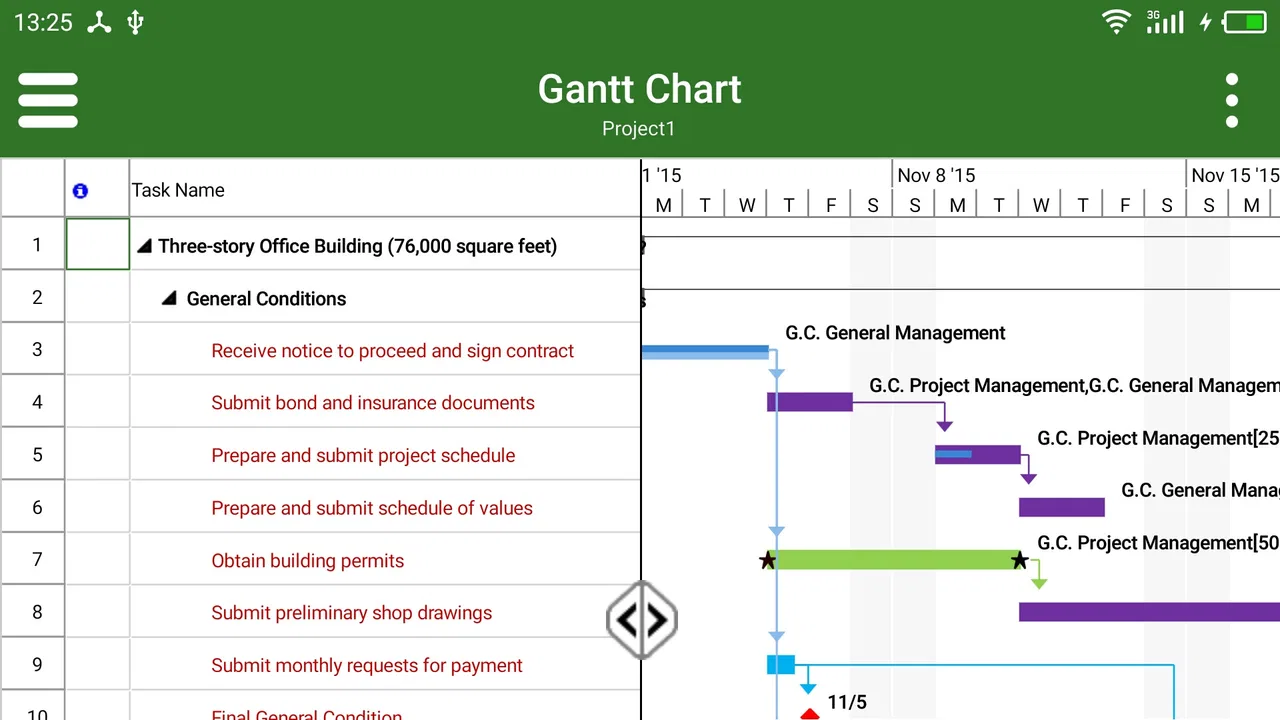
My first impression is that its value depends heavily on the job I am trying to do. If I need to review a timeline, check task relationships, or confirm whether a milestone is still on track, a dedicated viewer is more focused than carrying a full project-management setup everywhere. If I need to edit assignments, create a detailed baseline, or collaborate with a team in real time, the limitations become much more important. This is an app for reading project schedules, and judging it by that narrower purpose gives a fairer picture.
Where it fits in a practical project workflow
When I receive an MPP file, I find it useful to decide what I need to verify before opening it: a milestone, a task sequence, or a dependency that affects an upcoming decision. That keeps a mobile check focused and makes it easier to turn what I see into a clear update for the team. It also helps separate schedule facts from questions that still need an owner’s confirmation.
You May Also Like

 Blood Strike: 2.5 Anniversary
Blood Strike’s Loadouts Turn Every Drop Into a Tactical Gamble
A close look at Blood Strike’s custom loadouts: how fast access to signature weapons reshapes its battle royale rhythm, rewards preparation, and narrows the gap between fights.

 Pandora - Music & Podcasts
Pandora’s Music Is Easy to Start, but Harder to Recover
Pandora’s strength is its low-effort path from a seed to a station. Its weak spot is how much confidence it asks you to place in connection, setup, and quiet recovery.

 8 Ball Pool
8 Ball Pool Is Built on Rivalries, Rematches, and Routine
A close look at the rivalries, rematches, shared routines, and unanswered safety questions that turn a quick pool match into a persistent mobile community.

 Samsung Music
Samsung Music’s Quiet Strength Is Playing What You Already Own
Its reach comes less from spectacle than from dependable access to a personal library. That simplicity is both the app’s strongest retention engine and its ceiling.

 AccuWeather: Weather Radar
AccuWeather Review: A Quick, Clear Forecast for Everyday Decisions
For everyday plans, the best forecast is the one you can understand quickly. AccuWeather makes rain timing, radar, and local conditions easy to act on, with a few trade-offs.

 Hill Climb Racing
Why Hill Climb Racing Still Turns Crashes Into One More Run
A tiny car, a bumpy hill and one more upgrade: Hill Climb Racing keeps resurfacing because its simple chaos makes every near-miss feel personal.
More From Our News Desk



Starting with a messy handoff
Before opening a file in a viewer, my usual workflow is less organized than I would like. A project manager may send an MPP attachment by email, leave it in cloud storage, or share it through a work chat. On a computer, opening it is usually straightforward if the right software is installed. On a phone, the same file can become an interruption: I may be travelling, between meetings, or standing with a colleague who wants a quick answer.
That is the problem this app addresses. It gives the MPP file a place in a mobile review routine. Instead of promising myself that I will inspect the schedule later, I can use the phone as a checking station. That small change matters because project questions are often time-sensitive even when the actual work is not. A quick look at a task sequence can prevent an incorrect update or an unnecessary message to the project manager.
I would not treat it as the central home for project information. The original file should still be kept in the team’s normal storage location, with a clear naming convention and sensible version control. The viewer is better used as a lens over that source file. This distinction is important: a mobile viewer can make access easier, but it does not automatically create a reliable team process.
A realistic everyday scenario
Imagine that I am heading into a supplier call and receive the current schedule as an MPP file. I want to check whether a delivery task sits before testing, whether a milestone has moved, and which work appears to follow it. I do not need to redesign the plan during the call. I need enough context to ask a useful question instead of saying that I will look later.
In that situation, gProjectViewer is more appropriate than a general notes app or a screenshot of a schedule. A screenshot can show a small portion of a plan, but it quickly becomes stale and often hides relationships outside the captured area. A viewer keeps the source format central, which is useful when the schedule is too detailed for a simple image.
The trade-off is that mobile inspection is naturally less comfortable than desktop review. A large schedule can require more navigation, and a phone screen is not ideal for comparing many columns or scanning a long dependency chain. I would use it for a focused question, not for a long planning session.
What I would prepare before opening files
A repeatable process starts before the app itself. I would keep MPP files in clearly named folders, distinguish working copies from approved schedules, and avoid opening an attachment without knowing which revision it represents. That discipline protects against one of the most common project mistakes: reviewing a perfectly readable but outdated plan.
I would also decide what I am looking for before opening the file. “Check the schedule” is vague. “Confirm the testing start, inspect the predecessor chain, and verify the milestone date” is specific. On a small screen, a defined question keeps the review efficient and reduces the temptation to wander through the entire project.
This is one of the app’s less obvious strengths: it can support a short verification loop. Open the relevant MPP file, answer a concrete question, record the conclusion in the team’s normal system, and close the file. The app does not need to become another place where unfinished notes accumulate.
Capturing information without creating a second project system
A viewer is useful only if the information found inside it reaches the people who need it. After checking a schedule, I would write the result in the project’s established communication channel rather than relying on memory. For example, I might note that a supplier activity is still positioned before testing, then ask the owner to confirm whether the dependency remains valid.
This approach avoids a subtle productivity trap. It is easy to open a project file, notice several issues, and leave them as private observations. The next person then has no record of what was checked or when. The app helps me inspect the plan, but the follow-up still belongs in a shared workflow.
For quick reviews, I would keep a simple capture format: file revision, area checked, question, finding, and next action. That is not a feature claim about the app; it is a practical habit that makes mobile viewing useful. It also makes it easier to distinguish a factual schedule observation from an assumption or a decision that still needs approval.
Using the app as a repeatable routine
The best use I can see is a small review routine attached to existing project moments. Before a status meeting, I might open the latest schedule and inspect the few tasks likely to be discussed. After a change request, I might check whether the affected work sits near a milestone. Before replying to a stakeholder, I might verify the relevant dates instead of repeating something remembered from an earlier conversation.
These checks are more valuable when they have a defined stopping point. I would not browse the entire file every time. I would identify the work package, milestone, or dependency under discussion, inspect that area, and then record the outcome. This makes the app part of a sustainable productivity system rather than another source of constant checking.
There is also a useful separation between reading and editing. If my role is to approve, coordinate, or communicate, I may need reliable visibility without needing permission to change the schedule. A viewer can fit that role better than a full authoring tool, provided everyone understands that the schedule itself is maintained elsewhere.
Why the file format matters
The focus on Microsoft Project files gives the app a clear audience. Organizations that already exchange MPP schedules may find a dedicated viewer more convenient than asking every participant to install a full desktop project application. It is especially relevant for people who are consumers of schedules: managers, clients, field staff, or colleagues who need to inspect a plan but do not own its construction.
That same focus narrows its usefulness. If my team works mainly in browser-based planning boards, spreadsheets, calendar systems, or a different project format, this app is unlikely to become the natural center of the workflow. I would not convert a team to MPP simply to justify using it. The file format should already be part of the organization’s process.
Where the friction appears
The public reception is a warning to take seriously. The app has an average rating of 2.0 from roughly 458 ratings, so I would not recommend installing it blindly for a critical deadline and assuming that every file will behave perfectly. A viewer can be valuable, but compatibility and usability matter more when the entire purpose is opening someone else’s schedule.
I would test it with a representative file before depending on it. A tiny sample schedule may open successfully while a complex working plan exposes navigation or rendering problems. The right test is not merely whether the file launches; it is whether I can locate the information I need quickly and interpret it with confidence.
Another point of friction is the difference between viewing and managing. Someone expecting a mobile version of Microsoft Project may feel disappointed if the experience does not support the same depth of authoring, formatting, or project administration. That is not a minor distinction. It changes who should install the app and what expectations should be set inside a team.
Cost, access, and the practical commitment
The app is free to install and is marked for Everyone, which lowers the barrier for occasional reviewers. It has been available since June 11, 2013, and the current version is 23.3.1204, so it is not a brand-new experiment. It supports Android devices running version 5.0 or later, making it accessible to many older phones as well as newer ones.
There are in-app purchases ranging from $0.99 to $39.99 per item. That means I would check the purchase screen and understand what is included before building a business process around the app. A free download is useful for evaluating the basic experience, but it should not be confused with an unlimited guarantee that every workflow is covered without additional cost.
The install base is over 100K, which suggests that the app has reached a meaningful group of Android users. Still, that figure does not replace a hands-on compatibility check. For a business tool, the important question is whether it handles the specific MPP files my team uses and whether the people reviewing them can work comfortably on their devices.
How it compares with the usual alternatives
The obvious alternative is opening the file in Microsoft Project on a desktop. That remains the better choice when I need to build or revise a schedule, manage detailed project logic, or work with the full planning environment. The desktop option is less convenient for a quick mobile check, but it is the more suitable tool for serious schedule authoring.
A spreadsheet is more flexible for manually extracting dates, owners, and status notes, but it can lose the structure that makes a project schedule useful. Dependencies and timeline context are easy to flatten into rows. I would use a spreadsheet for a custom report, not as a substitute for inspecting the original plan when relationships matter.
Browser-based project-management platforms are usually stronger for collaboration, comments, assignments, and live team updates. If the organization already maintains its schedule there, moving attention to a mobile MPP viewer may fragment the workflow. On the other hand, teams that exchange MPP files as formal schedule documents may prefer keeping the original format visible during review.
PDF exports and screenshots are convenient for sharing a fixed snapshot, but they are poor for exploring a large plan. They also encourage people to discuss an image without checking whether it is current. I see gProjectViewer as most useful in the gap between those options: more direct than a static export, lighter than a full desktop authoring tool, and more specialized than a generic file viewer.
Who should adopt it
I would recommend trying it if I regularly receive MPP files, work away from a desktop, and mainly need to inspect schedules. It can suit a project coordinator checking a milestone before a meeting, a manager answering a timeline question, or a field colleague who needs to confirm the order of planned work. The strongest fit is someone who values access and verification more than editing.
I would be more cautious if the schedule is business-critical, highly complex, or frequently revised. In that case, I would test several real files and keep a desktop or browser-based fallback available. The low average rating makes this testing especially sensible, not because it proves that the app will fail for everyone, but because it signals that the experience may not be consistently smooth across users and files.
I would skip it if I do not use Microsoft Project files at all, if I need collaborative editing, or if my daily work depends on changing schedules from a phone. I would also skip it as a team-wide solution when the organization already has a shared online project system that everyone uses successfully. Adding a separate viewer can create another step without solving a real problem.
My final assessment after fitting it into a system
gProjectViewer has a clear and worthwhile role: it can turn an MPP attachment from a desktop-only obligation into something I can inspect during the working day. Its best contribution is not replacing project management, but shortening the distance between a schedule question and a reliable answer.
I would use it deliberately, with current files, defined review questions, and a separate place for decisions and follow-up actions. I would also test it against the schedules that matter most before trusting it for urgent work. The free entry point makes that evaluation easy, while the in-app purchase range means I would pay attention to the exact value offered before committing.
My recommendation is therefore selective rather than universal. For an Android user who needs a practical MPP viewer, it is worth a trial. For someone seeking a complete mobile project-management suite, it is the wrong expectation. The app works best as a focused inspection tool inside a disciplined workflow, not as the workflow itself.
FAQs for gProjectViewer
01What is gProjectViewer, and what can I use it for?
gProjectViewer is designed to help users open and review project files on a mobile device without relying entirely on a desktop computer. It can be useful for checking schedules, tasks, timelines, assignments, and other project information while traveling or away from the office. Before downloading, confirm that the app supports the specific project-file format and version you need, since compatibility may vary.
02Which project file formats does gProjectViewer support?
File compatibility is one of the most important points to check before installing gProjectViewer. The app is intended for viewing project-management files, but supported formats may depend on the application version and the files’ origin. Some files may open with limited functionality, especially when they contain advanced formatting, custom fields, linked resources, or features created by newer desktop software.
03Can I edit project files in gProjectViewer, or is it only for viewing?
gProjectViewer is primarily intended as a viewer rather than a complete project-management editor. It is useful for reviewing schedules, task details, milestones, dependencies, and other stored information, but users should not assume that every project element can be changed from the app. If you need advanced editing, resource management, recalculation, or full collaboration tools, a dedicated desktop solution may still be necessary.
04How do I open a project file in gProjectViewer?
After installation, project files can generally be opened through the device’s file manager, an email attachment, cloud storage, or the system share menu, depending on your phone and operating system. Select gProjectViewer when it appears among the available apps. If the file does not open, check its extension, storage permissions, download status, and whether it was created using a supported project-management program.
05Is gProjectViewer suitable for professional or offline use?
gProjectViewer can be convenient for professionals who need quick access to project information during meetings, site visits, or travel. Viewing files locally may also be useful when an internet connection is unavailable, although cloud-based files may need to be downloaded first. For business use, review privacy policies, permissions, file-security practices, and compatibility requirements before opening confidential project documents.
Pros
- Clear project timelines make schedules easy to understand.
- Supports quick progress checks for multiple project activities.
- Useful for reviewing plans without needing full project software.
- Compact interface works well for checking details on mobile devices.
- Helpful for teams that need a simple project-viewing companion.
Cons
- Viewing features may be limited compared with full project management apps.
- Large or complex project files can be difficult to navigate on a phone.
- Some formats or advanced project data may not display perfectly.
- The interface may feel dated compared with newer productivity apps.
- It is mainly for viewing
- so editing and collaboration options are limited.

gProjectViewer
Gallery